Fees in WaterfallOne are deductions from distributions, not a separate billing system. You configure them on any asset, and they're automatically calculated and deducted every time you run a distribution. Fees can be taken before the waterfall runs (reducing the cash available to all tiers) or after it runs (deducted pro-rata from LP allocations only). Set them up once and they apply automatically going forward.
Where to Configure Fees
Fee setup is accessible from multiple places in WaterfallOne, so you can configure them whenever it makes sense in your workflow:
- Asset Details page: Open any asset, click the Asset Details button at the top, and switch to the Fees tab. This is the most direct route and what's shown in the screenshots below.
- Asset onboarding: When creating a new asset, you can configure fees as part of the setup process before you ever run a distribution.
- Distribution setup: When running a distribution or bulk distribution, the fee deductions toggle lets you review and adjust fees before finalizing. Any fees already configured on the asset appear here automatically.
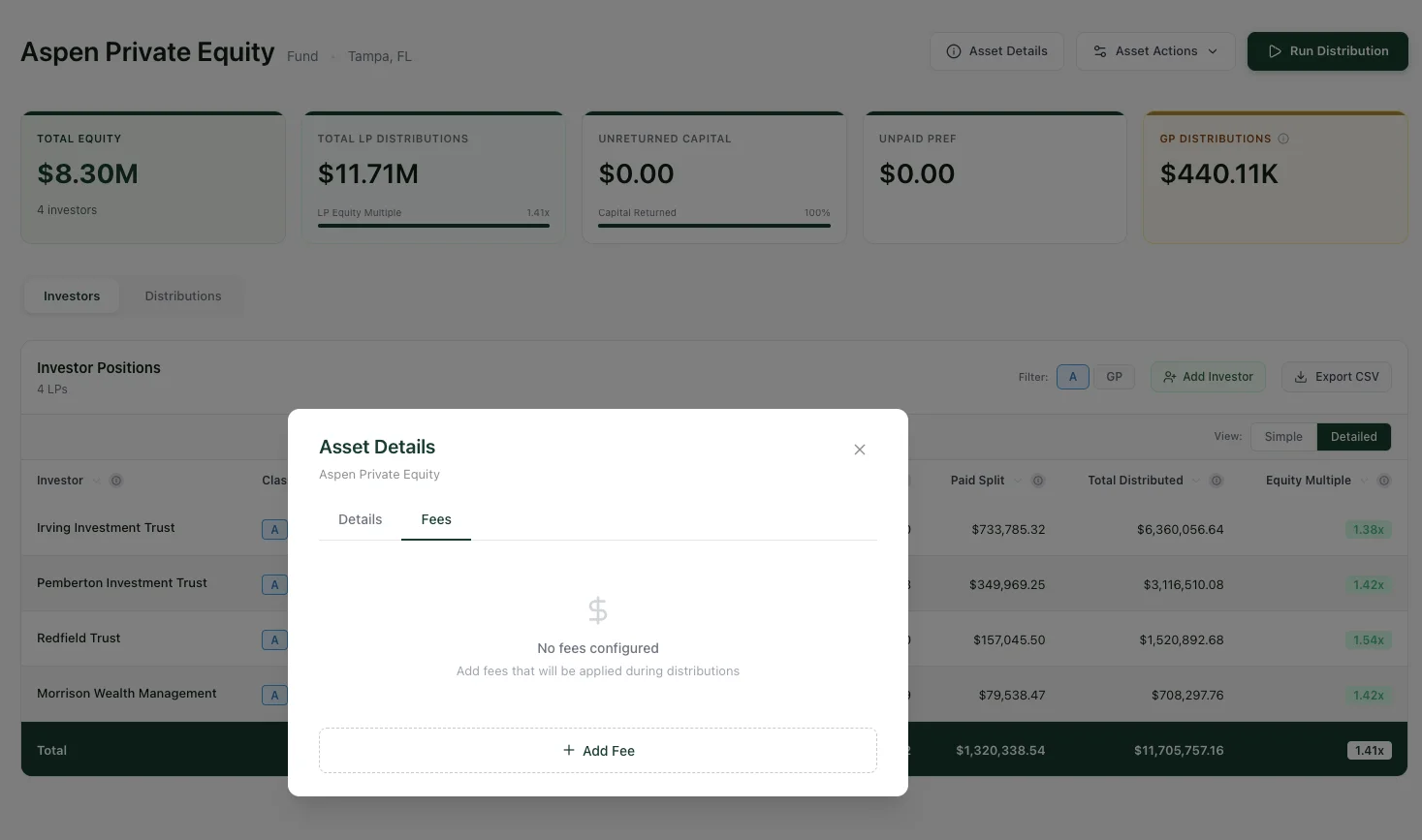
The Fees tab inside Asset Details. Click Asset Details on any asset page, then switch to the Fees tab.
Setting Up a Fee
Click + Add Fee to open the fee form. Each fee has five components:
- Fee Name: Whatever you want to call it (e.g., "Asset Management Fee", "Acquisition Fee", "Admin Fee"). This label appears in distribution previews and the audit trail, so make it descriptive.
- Type & Amount: Choose between a percentage (e.g., 2%, calculated against the distribution amount) or a flat dollar amount (e.g., $5,000, a fixed deduction regardless of distribution size). Toggle between the two using the Percentage and Flat Amount buttons.
- Deduction Basis: Controls where in the waterfall the fee is taken from:
- Gross Amount: Deducted from the total distribution amount before the waterfall runs. This reduces the cash available for ROC, Preferred Return, Catch-Up, and Promote. Every tier sees less money.
- Net LP Amount: Deducted after the entire waterfall completes, pro-rata from each LP's allocation. GP carry is not affected. Use this for fees that should only reduce LP proceeds.
- Applies To: Toggle whether this fee applies to Operating distributions (ongoing cash flow), Capital Event distributions (sale, refinance), or both. For example, an asset management fee on operating distributions but a disposition fee only on capital events.
- Cap Amount (optional): A maximum dollar ceiling on the fee. If the calculated fee exceeds the cap, only the cap amount is deducted. Leave blank for no cap. Useful for percentage-based fees where you want to limit exposure (e.g., a 2% fee capped at $50K).
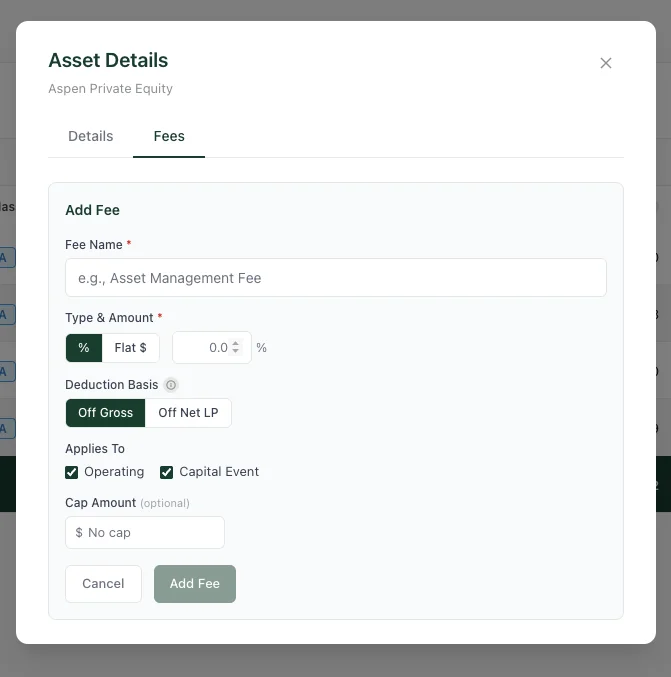
The Add Fee form. Name it, set the amount (Percentage or Flat Amount), choose the deduction basis, and optionally cap it.
Gross Amount vs. Net LP Amount: Examples
Gross Amount example: You're distributing $1,000,000 from an asset with a 2% Asset Management Fee set to Gross Amount. The fee is calculated first: $20,000. The remaining $980,000 flows into the waterfall and is split through the tiers (ROC → Preferred Return → Catch-Up → Promote). Every tier, including GP carry, works with the reduced amount.
Net LP Amount example: The same $1,000,000 flows through the full waterfall first. LPs receive $900,000 total and the GP receives $100,000 in carry. Then a 0.5% Admin Fee (Net LP Amount) is calculated on the LP total: $4,500. That $4,500 is deducted pro-rata from each LP's allocation. The GP's $100,000 carry is untouched.
Multiple Fees and Processing Order
You can configure as many fees as you need per asset, each with its own name, rate, deduction basis, and cap. Fees are processed in order. Each fee's deduction affects the available cash for the next fee. If you have a 2% management fee and a $5K admin fee on the same asset, the management fee is deducted first, then the admin fee is deducted from the remaining amount.
Fees at Distribution Time
When you run a distribution, any fees configured on the asset are automatically applied. During the distribution setup, you'll see a Fee Deductions toggle that shows exactly what will be deducted and how much. You can review the fee breakdown on the preview screen before confirming.
Waiving fees: At distribution time, any fee can be waived. When you waive a fee, the calculated amount is still recorded in the audit trail for transparency, but nothing is actually deducted from the distribution. This lets you make exceptions without losing the paper trail.
Audit Trail
Every fee application is fully recorded: what was calculated, what was actually deducted, and whether it was waived. The final distribution confirmation shows the gross amount, each fee deduction, and the net amount that flows through the waterfall. All fee math uses arbitrary-precision decimal arithmetic, so there are no floating-point rounding errors.
Editing and Removing Fees
You can modify or remove fees at any time from the Asset Details → Fees tab. Changes apply to future distributions only. Past distributions that already had fees deducted are not affected. Your historical records stay accurate even if you adjust fee structures going forward. There are no recurring or scheduled fees. Fees are applied per distribution, every time you run one.
Ready to try it?
Start free. No credit card required.